 BuildSheet
Step by step
- Publish your build to the community feed first. A tag can only show a published build. See Publishing to the feed.
- Tap your phone on the sticker or plate cover. A Claim Your Tag page opens. Tap Claim this tag and sign in.
- You land in Settings → NFC Tags with the tag code already filled in. If you open NFC Tags yourself, type the code printed on your tag instead.
- Choose whether the tag is a Sticker or a Plate cover, pick the build it should show, and decide whether to hide prices on scans.
- Tap Claim tag. The tag is live right away: anyone who taps it sees a quick view of your build.
- Use Copy link on the tag to share the same page anywhere, like your Instagram bio or a text.
What people see when they tap your tag
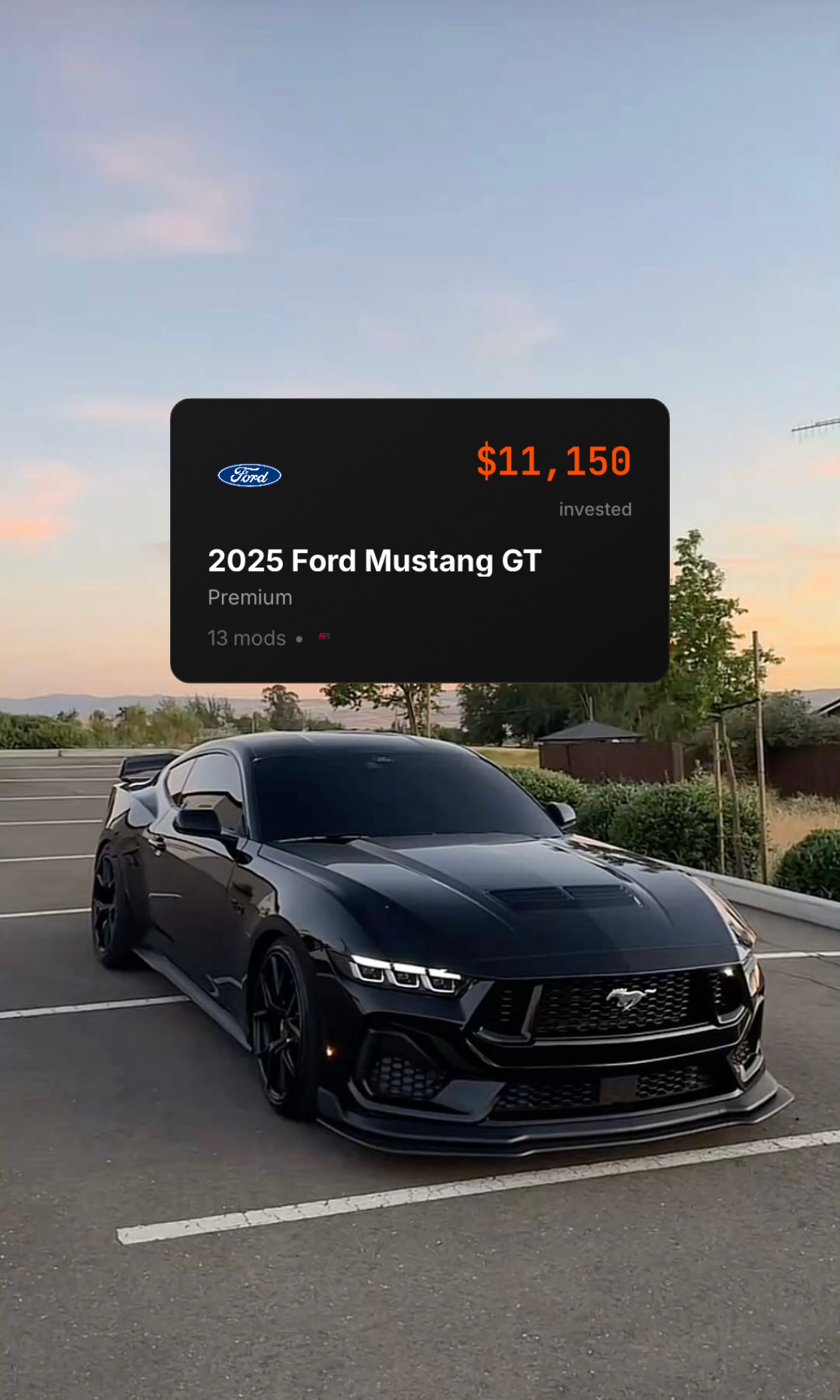
Tapping opens a quick view of your build in their phone's browser: photos, vehicle, horsepower, part count, your description, and your first 10 parts. They do not need the BuildSheet app or an account. To see every part, like, follow, or message you, they are asked to sign up, and they land on your build once they do.
Managing your tags
Everything lives in Settings → NFC Tags. For each tag you can:
- Switch builds. Point the tag at a different published build at any time, for example when you start a new project.
- Hide prices on scans. Removes the total invested and part prices from the page people see when they tap that tag. Your prices still show in the app and on your regular build link.
- Turn the tag off. Anyone who taps it sees a "Tag Turned Off" page until you switch it back on.
- See scan counts to know how often people are checking out your car.
- Remove the tag when you sell the car. It becomes claimable again, so the next owner can link it to their build.
Stickers and plate covers on the same car
You can link more than one tag to the same build. Label each one as a sticker or a plate cover so you can tell them apart; each keeps its own scan count, price setting, and on/off switch.
Tips
- On iPhone, hold the top edge of the phone near the tag. On Android, use the middle of the back of the phone, and make sure NFC is turned on in settings.
- Hold the phone still for a second. A notification or banner appears; tap it to open the build.
- Check local laws before mounting anything on or over a license plate. Plate covers are best for shows and display plates.
- NFC Tags is available on the web at buildsheetapp.com today and in the next BuildSheet app update.