 BuildSheet
Step by step
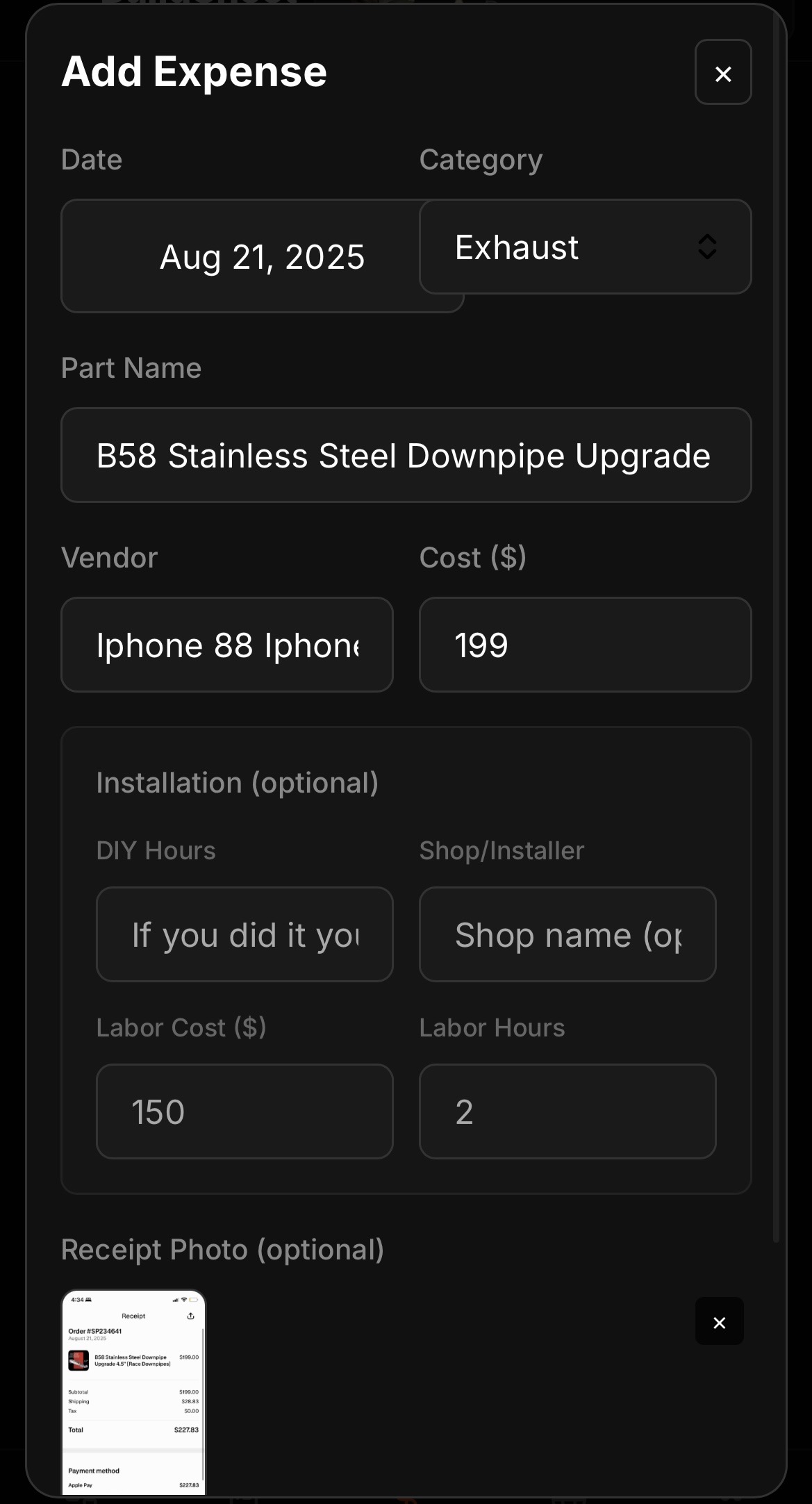
- From the dashboard or the expenses tab, tap Add to create a new expense.
- Enter the part or item name, the amount, and choose a category so your spending stays organized.
- If you have a product page, paste the link. BuildSheet can save the URL and, when available, pull in the part name, vendor, price, and product image.
- Add the vendor, purchase date, and mileage when relevant. This context is what makes a build sheet trustworthy later.
- Record labor separately from the part cost when a shop installed it, or log your own time if you want a complete picture.
- Attach a receipt photo and any install notes, then save. The dashboard total updates immediately.
Capture the costs builds usually miss
A complete expense includes more than the part price. Log shipping, tax, tools, fluids, and hardware so the total is real. A quick habit that works: log every part the same day it is ordered or installed, while the receipt is still in your hand.
Product links and richer mod cards
Product links keep the original part page attached to the expense. When BuildSheet can read the page, the mod card can show the product image, vendor, and price beside your notes. If a link cannot be read, the expense still saves normally and you can fill in the details manually.
Editing and correcting entries
If your total looks wrong after removing an item, open the expense list and confirm the entry was fully deleted. Edited amounts recalculate the build total automatically.